
Notice
Recent Posts
Recent Comments
Link
| 일 | 월 | 화 | 수 | 목 | 금 | 토 |
|---|---|---|---|---|---|---|
| 1 | 2 | 3 | 4 | |||
| 5 | 6 | 7 | 8 | 9 | 10 | 11 |
| 12 | 13 | 14 | 15 | 16 | 17 | 18 |
| 19 | 20 | 21 | 22 | 23 | 24 | 25 |
| 26 | 27 | 28 | 29 | 30 | 31 |
Tags
- 유튜브
- 에러
- compose
- 코루틴
- 안드로이드
- hilt
- 안드로이드 스튜디오
- 스튜디오
- error
- Kotlin
- Gradle
- coroutine
- Retrofit
- RecyclerView
- 코틀린
- Github
- cursor
- build
- 의존성주입
- DI
- 웹뷰
- 안드로이드스튜디오
- DAGGER
- 깃헙
- studio
- MVVM
- WebView
- ADB
- 안스
- Android
Archives
- Today
- Total
코딩하는 일용직 노동자
[Android] 레이아웃의 유연함을 더해주는 ConstraintLayout 'Barrier' 본문
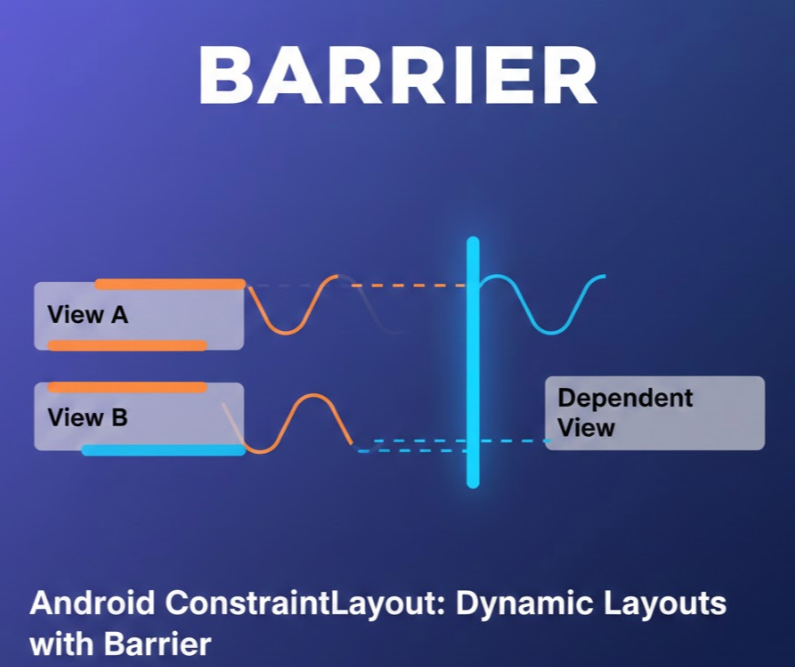
안드로이드 앱 UI를 개발하다 보면, 여러 개의 뷰 중에서 **"가장 긴(또는 높은) 뷰"**를 기준으로 다른 뷰를 배치해야 하는 상황이 생깁니다. 이때 유용하게 사용할 수 있는 Barrier에 대해 알아보겠습니다.
1. Barrier란 무엇인가?
Barrier(배리어)는 말 그대로 **'가상의 벽'**입니다. ConstraintLayout에서 제공하는 Helper 객체로, 화면에 직접 나타나지는 않지만 여러 개의 뷰를 묶어서 그 뷰들의 경계선을 동적으로 만들어 줍니다.
2. 왜 사용해야 할까? (Guideline과의 차이)
Guideline: 특정 수치(dp)나 퍼센트(%)로 고정된 선을 만듭니다.
Barrier: 참조하는 뷰들의 크기에 따라 위치가 가변적입니다.
예를 들어, '이름'과 '전화번호'라는 두 개의 TextView가 있을 때, 어떤 것이 더 길어질지 모르는 상황에서 그 오른쪽에 아이콘을 배치하고 싶을 때 사용합니다.
3. 주요 속성
app:barrierDirection: 벽을 세울 방향을 결정합니다. (top, bottom, left, right, start, end)
app:constraint_referenced_ids: 이 벽이 참조할 뷰들의 ID를 쉽표(,)로 구분해서 적습니다.
app:barrierAllowsGoneWidgets: (선택) 참조하는 뷰가 Gone 상태가 되었을 때 어떻게 처리할지 결정합니다.
4. 실제 구현 코드
아래 코드는 tv_name과 tv_phone 중 더 긴 쪽의 오른쪽에 btn_next 버튼을 배치하는 예시입니다.
<TextView
android:id="@+id/tv_name"
android:layout_width="wrap_content"
android:layout_height="wrap_content"
android:text="User Name" />

<TextView
android:id="@+id/tv_phone"
android:layout_width="wrap_content"
android:layout_height="wrap_content"
app:layout_constraintTop_toBottomOf="@id/tv_name"
android:text="Phone Number" />

<androidx.constraintlayout.widget.Barrier
android:id="@+id/barrier_profile"
android:layout_width="wrap_content"
android:layout_height="wrap_content"
app:barrierDirection="end"
app:constraint_referenced_ids="tv_name, tv_phone" />

<Button
android:id="@+id/btn_next"
android:layout_width="wrap_content"
android:layout_height="wrap_content"
app:layout_constraintStart_toEndOf="@id/barrier_profile"
android:text="NEXT" />
5. 활용 팁 및 마무리
다국어 대응: 한국어로는 짧은 단어가 영어로나 독일어로는 매우 길어질 수 있습니다. Barrier를 사용하면 레이아웃이 겹치는 현상을 방지할 수 있습니다.
가상 뷰: Barrier는 뷰 계층 구조에는 존재하지만 실제로 그려지지는 않으므로 성능에 큰 영향을 주지 않습니다.
정리하며: 고정된 레이아웃보다는 데이터의 변화에 유연하게 대응하는 UI가 좋은 UX를 만듭니다. 복잡한 LinearLayout 중첩 대신 ConstraintLayout의 Barrier를 활용해 보세요!
'안드로이드' 카테고리의 다른 글
| [Android/UI] 나인패치(9-Patch) 이미지, 웹에서 1분 만에 만들기 (1) | 2026.04.10 |
|---|---|
| MVI 라이브러리 Orbit (1) | 2025.12.31 |
| Hilt, 5분 만에 정복하기 (feat. 배달 서비스 비유) (0) | 2025.12.14 |
| 안드로이드 클린 아키텍처, 쉽게 이해하기. (0) | 2025.12.14 |
| Hilt에서 @Provides와 @Binds: 언제, 어떻게 사용해야 할까? (1) | 2025.08.10 |
'안드로이드' Related Articles
more

